
Integrate our API with your Shopify page:
- Create your Shopify page
- Acquire our API token
- Download our Shopify code snippet here
Open the downloaded file and familiarize yourself with it. You will need to add parts of it to your store’s page templates, as well as ensure that you are using your own API token where required and the right API url.
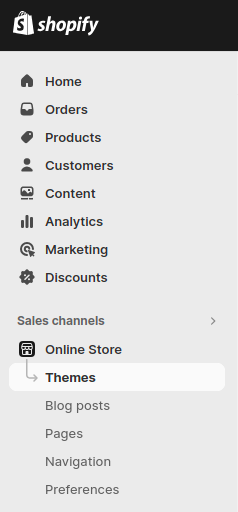
As a Shopify store administrator, navigate to your Theme under Sales channels/Online Store/Themes and access theme code editor from there:
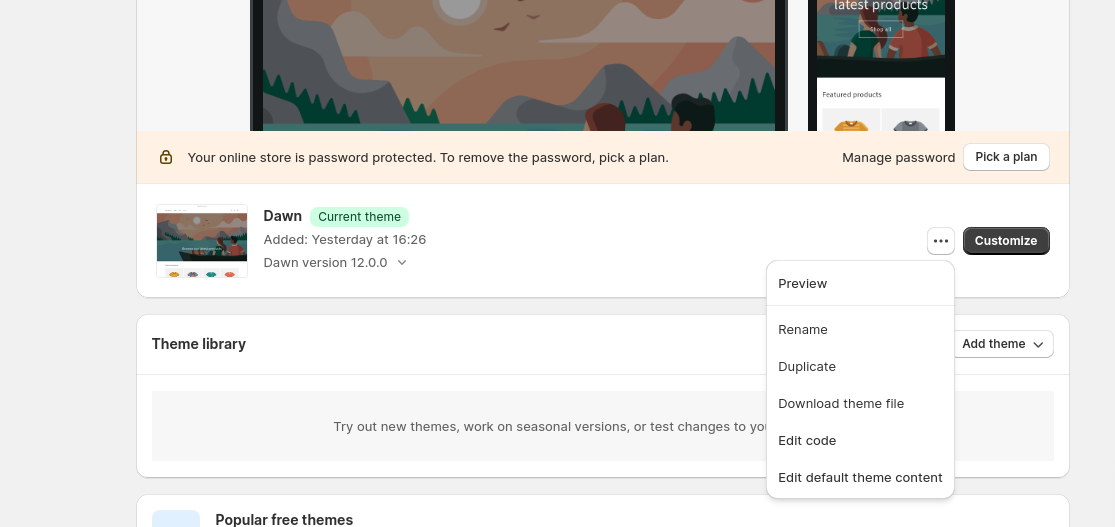
Once the editor is open, on the left hand side, you will need to edit two files:
- theme.liquid under Layout
From the downloaded file, include the <style> section at the bottom of the <head> section of theme.liquid template. - Depending on your theme you may have to adjust your style to fit it.
From the downloaded file, include the two <script> sections at the bottom of the <body> section of theme.liquid template. Make sure you have added your API token (instead of “YOUR_TOKEN_HERE”) and the right url (as this.url).
Click “save” in the top right corner. - customer/addresses.liquid under Templates
After the <h2> tag, place the entrypoint div:
<div id=”geoaddress-checked”></div>
Click “save” in the top right corner.
Above the save line, there are options for the theme. Click “preview” and inspect your code. You’ll see what the customer sees.
If you pick the account icon on the top right, and log in as a customer, you can click “view addresses”, then “add a new address”, and then you can see the new form that was changed.
If you start typing in the search, the API will deliver the results in form of a dropdown. If you pick an address from the delivered list of addresses, it will populate the fields with the information it has where it can. Make sure you pick the right Country and County for it and double check the results.