
ntegrate our API with your Zoho CRM project:
- Set up a Zoho CRM project
- Acquire our API token
- Retrieve custom code from our Github repository (zoho/geodirwidget.zip)
- Follow the guide:
In your Zoho CRM dahsboard access the setup page:

You will find Developer Space there:
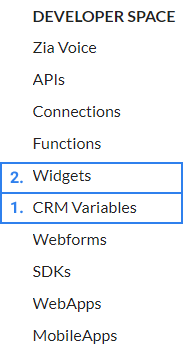
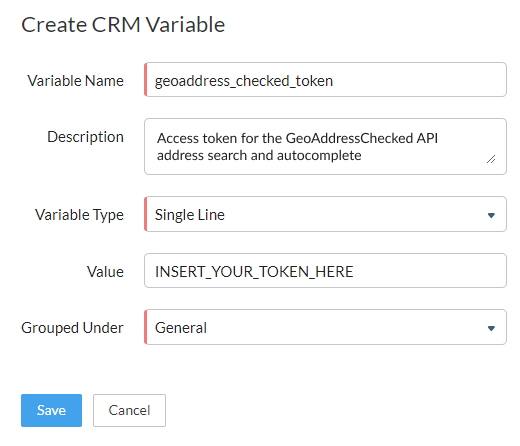
1. Access CRM Variables and create a new variable there, this is where you will store your Geoaddress Checked API token (the name of the variable needs to be geoaddress_checked_token)
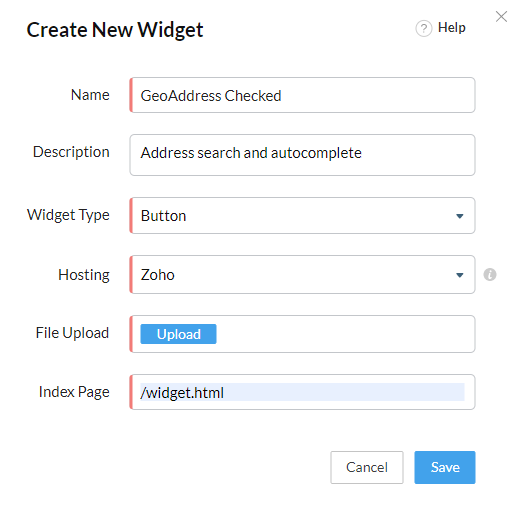
2.Go back to Developer Space, enter Widgets and create a new widget there. Upload the file from where you’ve originally downloaded the widget zip file and specify /widget.html as index page.
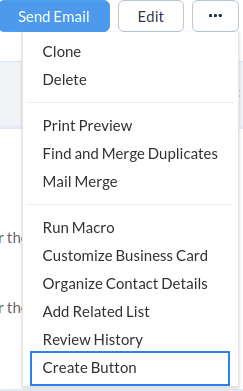
Now it’s time to see the widget in action. Go to the Contacts module in the dashboard’s navbar and click on a contact example from the list there. On the top right click on the three dots and select Create Button.
You can now attach the widget to the button template. Name the button, select where in your contacts you wish to make it available , e.g. Edit Page and what action will that button perform: Open a Widget.
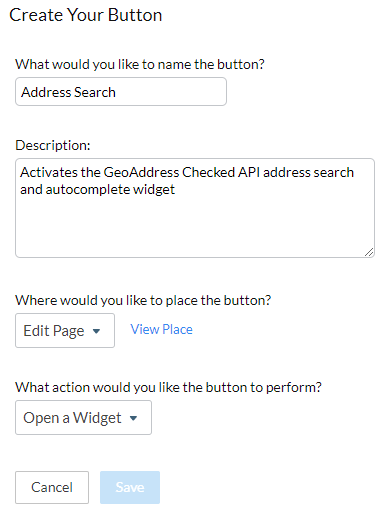
The button should now be available at the top of your contact Edit Page:

Clicking on it will open the widget in a separate window.
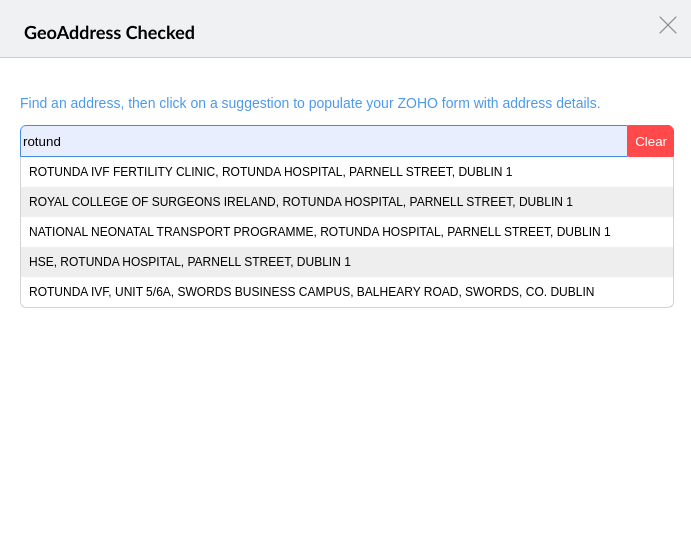
If you start typing in the search, the API will deliver the results in form of a dropdown. If you pick an address from the delivered list of addresses, it will populate the fields in the underlying contact Zoho form where it can.
